 Andrew Adams · Co-Founder & Operations at Wireflow ·
 AI Image Upscaler: Upscale to 4K in a Visual Workflow
Wire an AI upscaler node onto a visual canvas, feed it a generated image or one you import, and rebuild it at 4x with the Crystal Upscaler.
Building the graph is free, and each run spends credits.
Free to build · no credit card
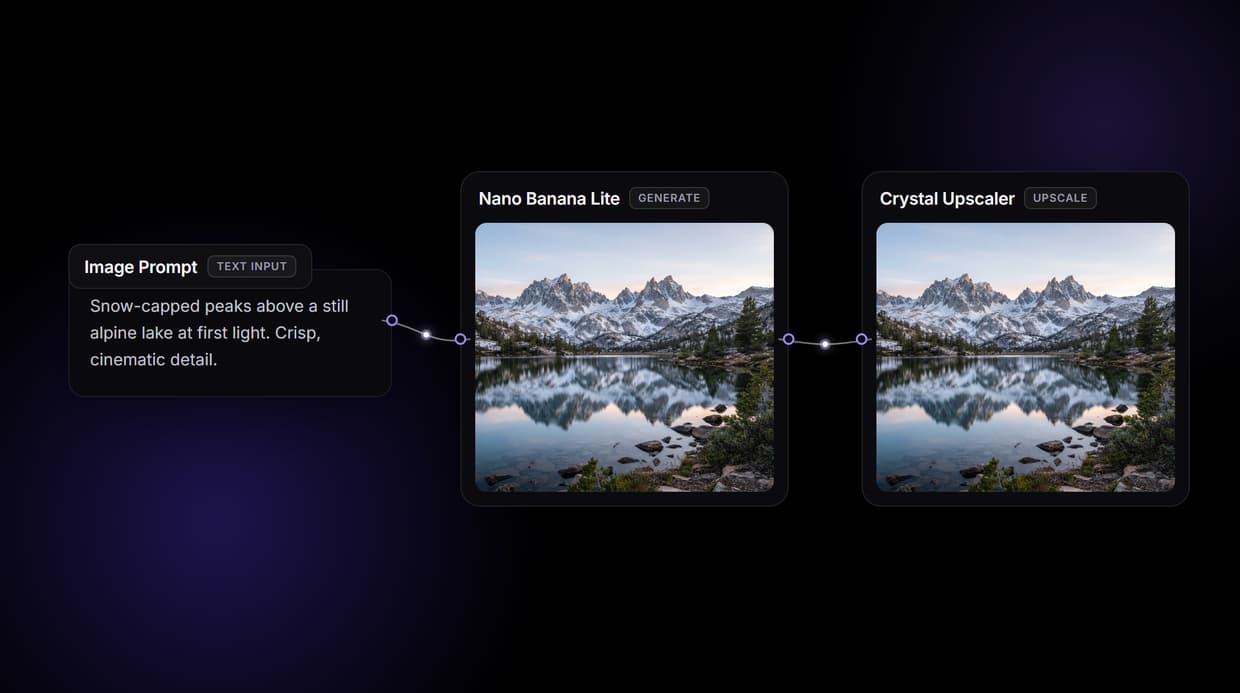
Upscaling that reconstructs detail, not pixels
Traditional resizing stretches the pixels you already have, so edges soften and texture smears. An AI upscaler predicts the detail that was never captured, rebuilding sharp edges and fine grain at higher resolution instead of guessing a blurry average between pixels.
Wireflow puts that upscaler on a visual canvas as a node. You wire it after a generation step or after an image you import, preview the result, and swap the model without writing a line of code. For damaged scans and old prints, repair the image first, then upscale the clean result.
What the upscale graph gives you
Detail reconstruction
The Crystal Upscaler rebuilds edges and texture at 4x instead of stretching pixels.
Generate then upscale
Render a base image with GPT Image 2.5 Flare and upscale it in the same graph.
One-node model swap
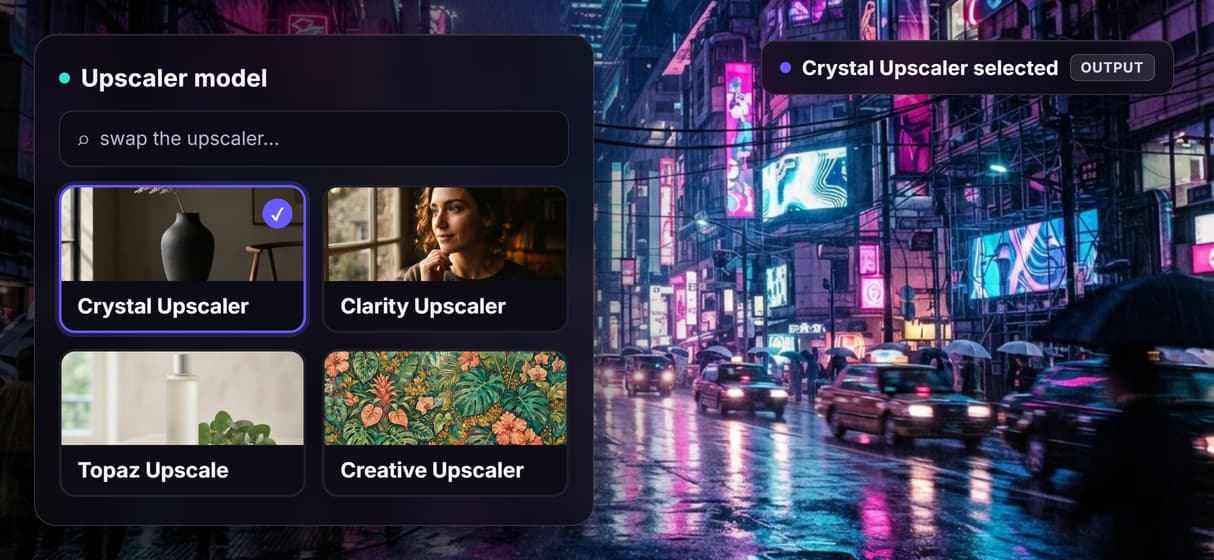
Switch between Crystal, Clarity, Topaz, and Creative upscalers from a dropdown.
Batch with iterators
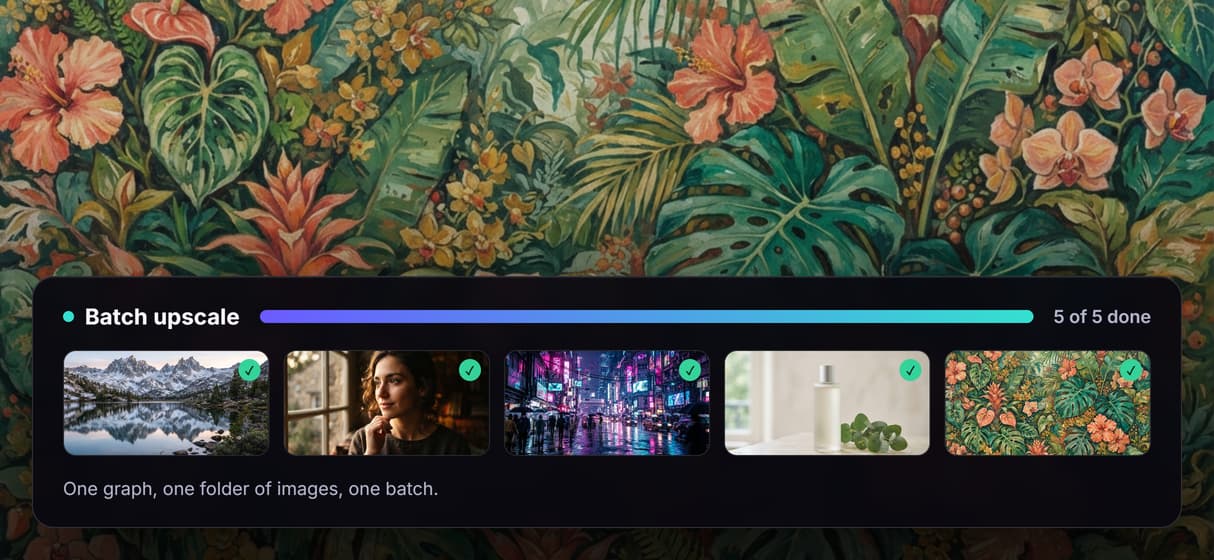
An Image Iterator loops the upscale graph over a whole folder of images.
REST and MCP access
Every published graph is a REST endpoint and an MCP tool for your app or agent.
Reusable templates
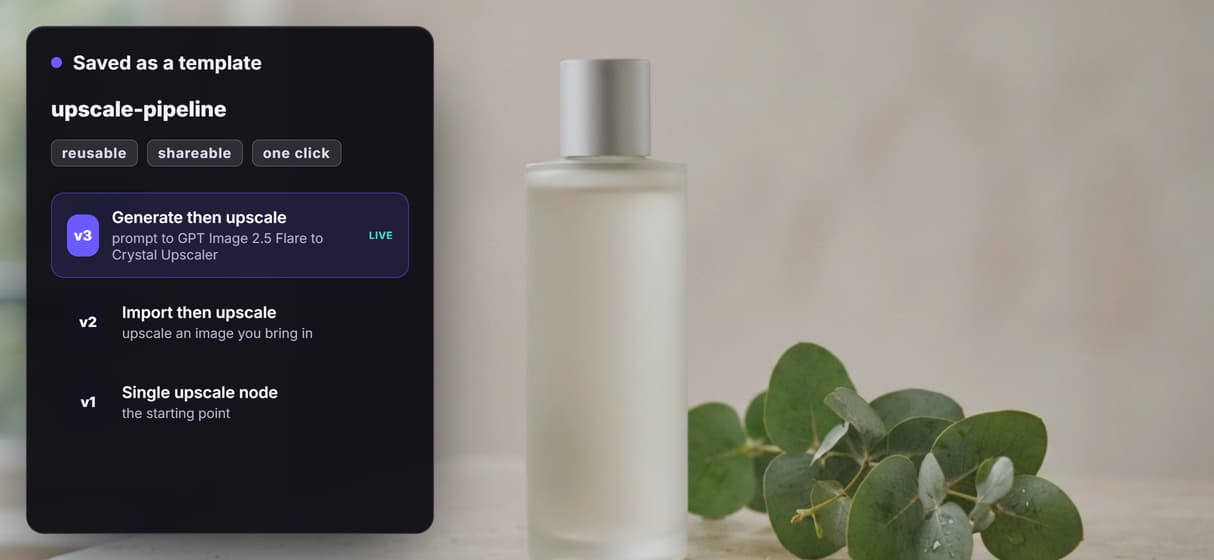
Save the pipeline so your team reruns it with one click.
How the upscaler is wired
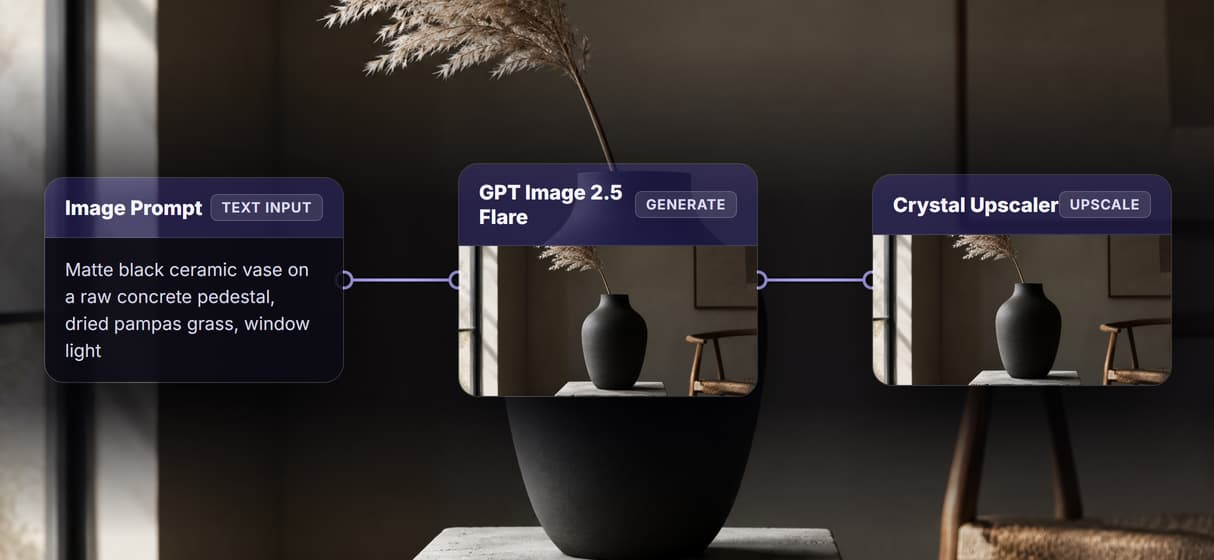
The workflow on this page is three connected nodes. An art-direction prompt feeds a GPT Image 2.5 Flare node that renders a base image, and that image feeds a Crystal Upscaler node that rebuilds it at four times the resolution. One prompt in, one high-resolution image out.
Because it is a graph, you can rearrange it. Point the upscaler at an image you import instead of a generated one, drop in an Image Iterator to batch a folder, or swap the Crystal Upscaler for Clarity, Topaz, or Creative on the same wire. Publish the graph once and it runs from a click, a REST call, or an agent.
What it does, and what it does not
Wireflow is the generation and processing layer, not a freehand photo editor. There is no brush, no layers, and no masking, and it exports raster PNG or JPG images rather than editable PSD or vector files. It runs in the browser on hosted compute, so there is no GPU, CUDA, or local model to install.
Upscaling adds resolution, it does not invent a subject that was never in the source, and it is not a substitute for sharpening a soft photo. Building and wiring the graph is free. Each generation or upscale run spends credits, and paid plans start at 24 dollars per month, so free here means free to build and preview, not unlimited free upscales.
More Than Just AI Image Upscaler: Upscale to 4K in a Visual Workflow
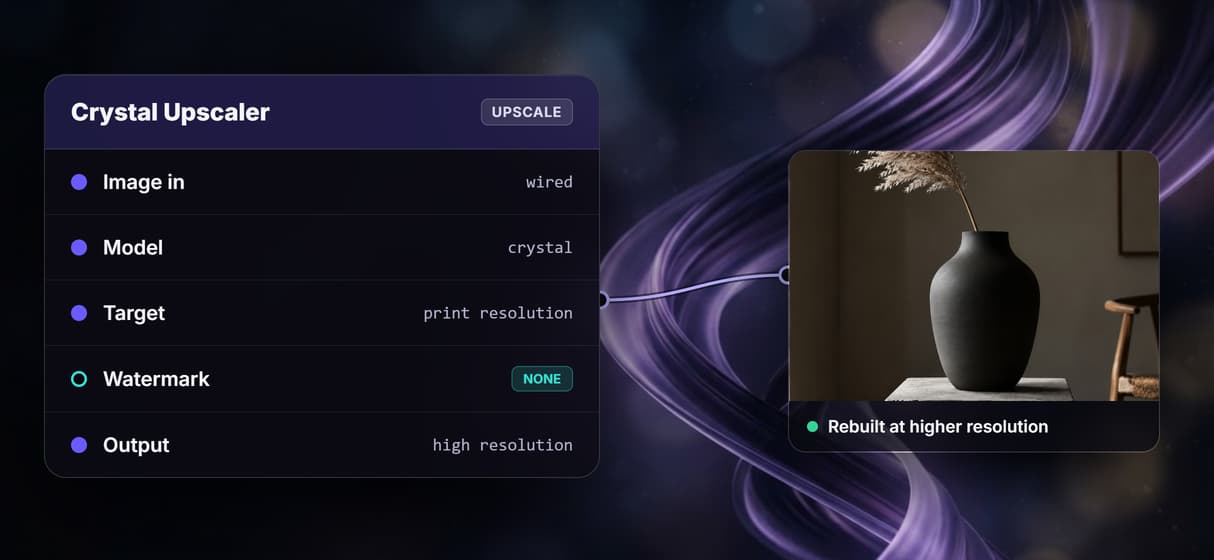
Reconstructs detail, not pixels
The Crystal Upscaler rebuilds real edges and texture at 4x instead of stretching the pixels soft. Wire and preview it on the visual node editor. Need a source image first? You can generate images on Wireflow's node canvas.
Generate then upscale in one graph
Render a base image with GPT Image 2.5 Flare, then feed it straight into the upscaler in the same graph. Start from a prompt on the AI image generator.
Swap the upscaler in a click
Switch between Crystal, Clarity, Topaz, and Creative upscalers as one node swap, no rewiring. Compare passes the way you chain any models.
Batch a whole folder
An Image Iterator loops the upscale graph over a folder, so a full set runs through one pipeline. Automate it end to end with pipeline automation.
Save it as a reusable template
Save the generate-then-upscale graph so your team reruns it with one click. Keep the pipeline as a reusable template.
AI Models Available
Automate Any Workflow
Included in Every Plan
FAQs
An AI upscaler uses a neural network trained on many image pairs to predict high-resolution detail from a low-resolution input. It reconstructs edges and texture that plain bicubic or Lanczos resizing would blur, adding believable detail rather than a blurry average.
More From Wireflow
Written by
Andrew Adams · Co-Founder & Operations at Wireflow
Runs client operations and content strategy at Wireflow. Works directly with creative teams and agencies to build production AI workflows.
Upscale your images with AI
Wire an AI upscaler node onto a visual canvas, chain it after a generated image, and batch a whole library. Build the graph for free and run it when you are ready.