 Andrew Adams · Co-Founder & Operations at Wireflow ·
 Visual Node Editor
Wireflow is a visual node editor for AI media: drag model nodes onto a hosted canvas, wire one node's output into the next, and watch the whole pipeline run without writing a line of integration code.
Free to build · no credit card · See how it works ↓
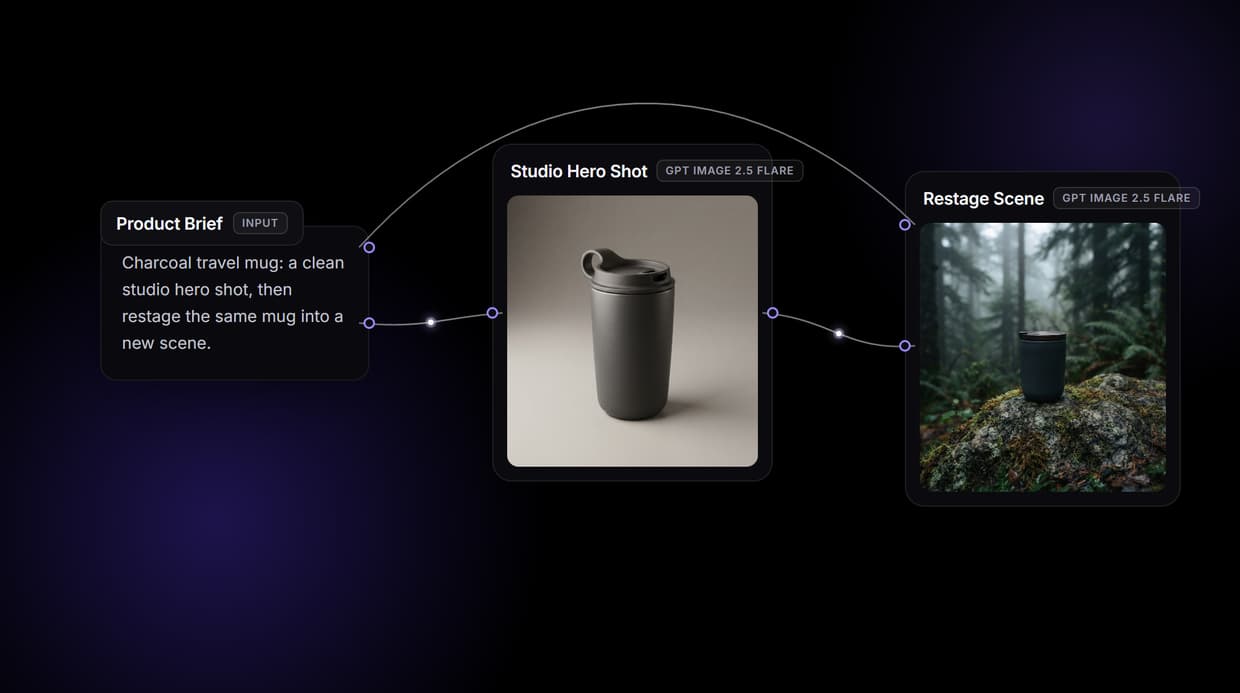
How to Use Visual Node Editor
Steps to get you started in Wireflow.
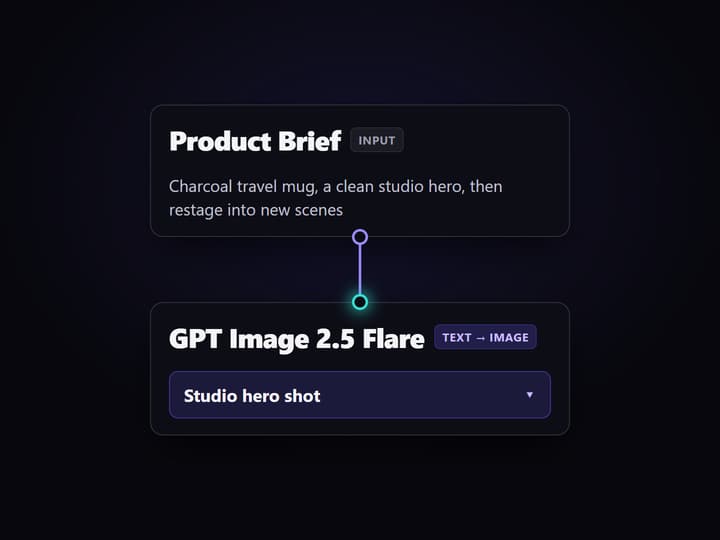
Drag nodes onto the canvas
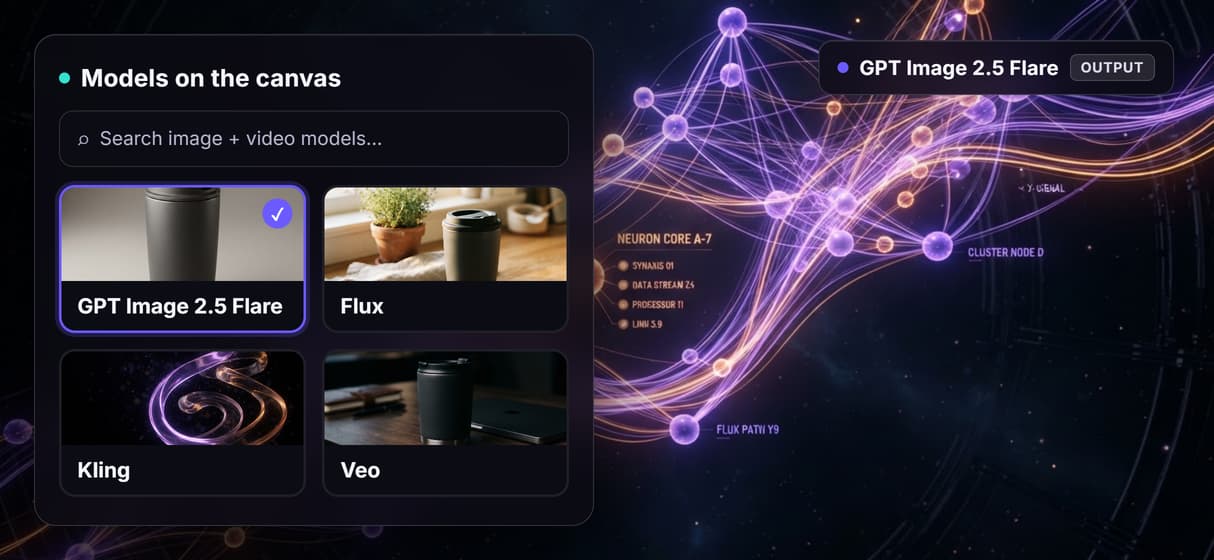
Open the model library and drop nodes on the canvas: a text brief, an image model like GPT Image 2.5 Flare, a restage step. Each node is one capability you arrange in space.
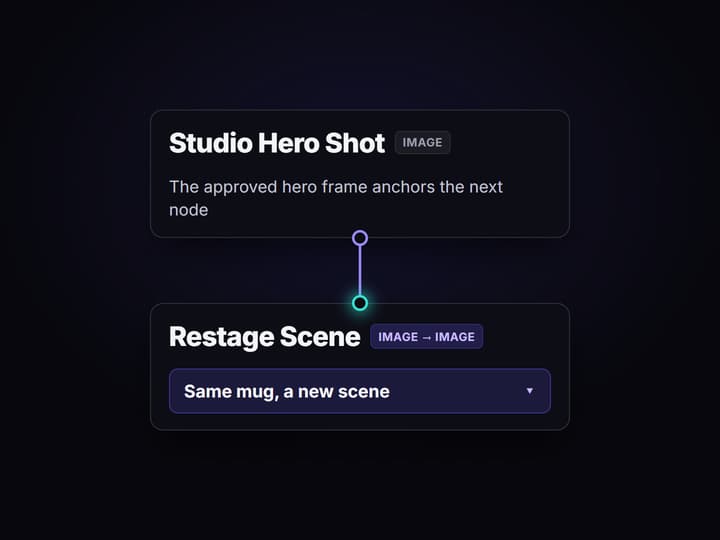
Wire outputs into inputs
Draw a line from one node's output port to the next node's input port. The brief feeds the image node, and that hero shot feeds the restage node, so data flows down the graph.
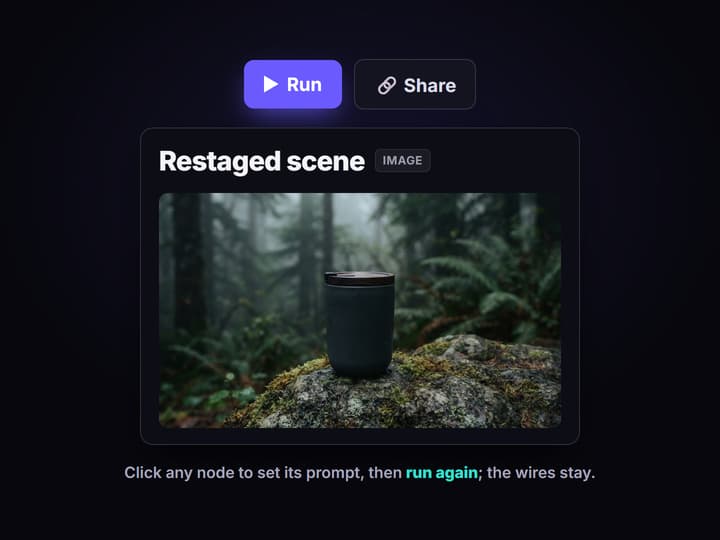
Configure and run each node
Click any node to set its prompt, aspect ratio, or model, then run the graph. Each node renders its own preview so you see the exact step that produced every result.
A canvas you can read instead of code you have to trace
A visual node editor turns model chaining into something you can see. Instead of stitching API calls together and tracing logic through files, you drag a model onto a canvas, wire its output into the next node, and watch data flow through the graph. The whole pipeline structure is visible at once, so you understand a complex multi step workflow in seconds.
Wireflow runs that canvas on hosted compute, so there is no CUDA, no VRAM ceiling, and no install. You build the graph in the browser, click run, and each node executes in turn. The result is a workflow you can hand to a teammate as a picture, not a wall of glue code.
What lives on the canvas
Text and brief nodes
Start a graph with a prompt or brief node that feeds the models downstream.
Image nodes
Generate and restage with models like Nano Banana Lite, Flux, Recraft, or Ideogram.
Video nodes
Turn a still into motion with Kling, Veo, or Seedance in the same graph.
Ports and wires
Draw from an output port to an input port to pass data between compatible nodes.
Reusable node groups
Copy a tested chain into a new workflow as a template instead of rebuilding it.
Per node previews
See each node's output as the graph runs so you can spot the exact step to adjust.
How the nodes connect
Every node has input and output ports, and a wire from one node's output to another's input is how data moves through the graph. A real pipeline reads left to right:
- Brief. A text node holds the instruction, like a product brief for a studio hero shot and a set of restaged scenes.
- Generate. The brief feeds an image node so a first render, the studio hero shot, comes out of the model.
- Restage. That hero shot wires into the next node, which restages the same subject into a new scene, so one output becomes the next node's input.
Because the wires define the flow, you can swap the model on any node or retune a prompt without breaking the connections. The same pattern powers the visual AI workflow builder and the node based AI platform with an API.
What it is, and what it is not
Wireflow is the generation layer, not the reasoning brain. The canvas runs the image, video, and audio pipeline; it does not write your copy or decide your strategy. If your work is pure text, you do not need a node graph.
It is also hosted by design, so there is no offline mode, no custom Python nodes, no local checkpoints or Civitai imports, and no real time co editing. That is the honest trade for never touching a GPU. If you need a local, air gapped rig with custom nodes, keep it. If you want the visual node canvas without the setup, this is built for that.
More Than Just Visual Node Editor
Drag and drop, not code
Connect AI models by drawing lines between nodes instead of writing integration scripts. The whole pipeline sits on one canvas you read at a glance. The editor is the front end of Wireflow's platform for node-based AI workflows.
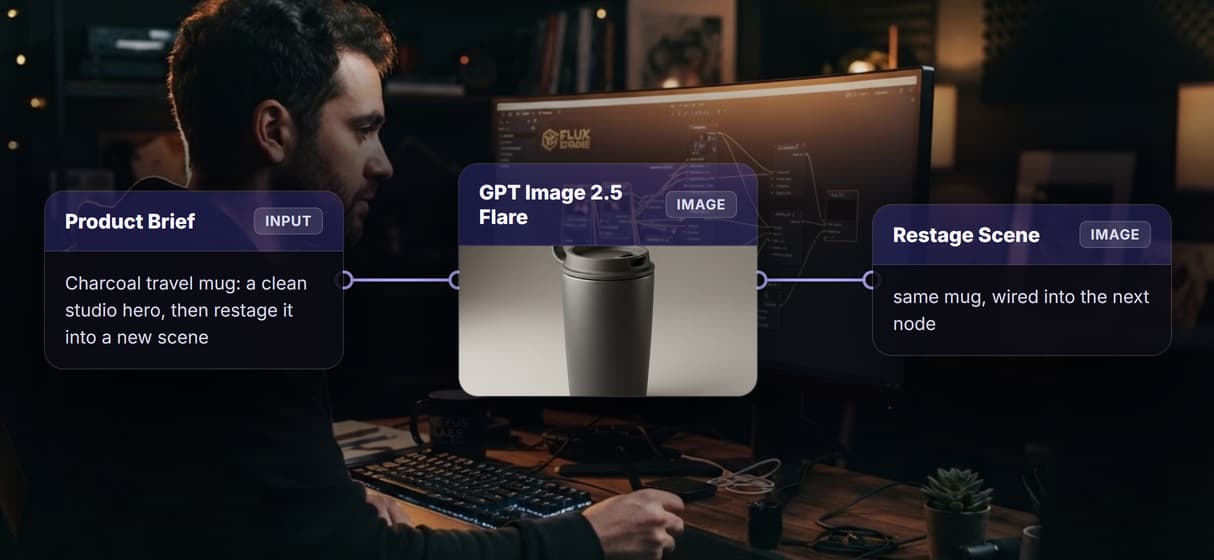
Live preview on every node
Each node shows its own output as the graph runs. Catch a weak frame at its source instead of debugging from the final render alone.
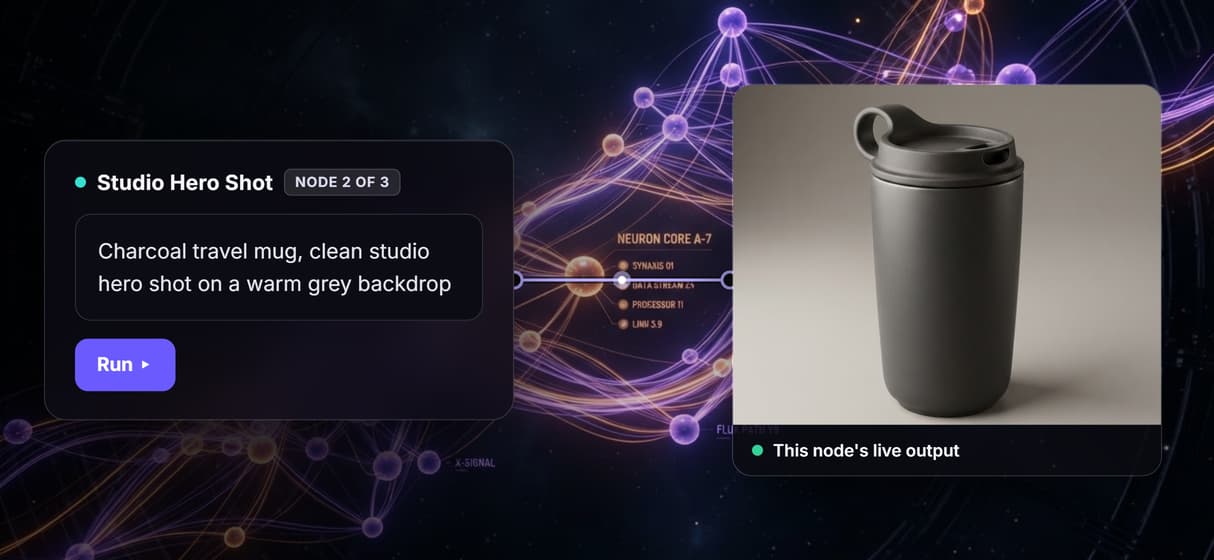
Non destructive editing
Swap one image model or retune a single node and the downstream wires stay intact. Experiment on one box without rebuilding the workflow.
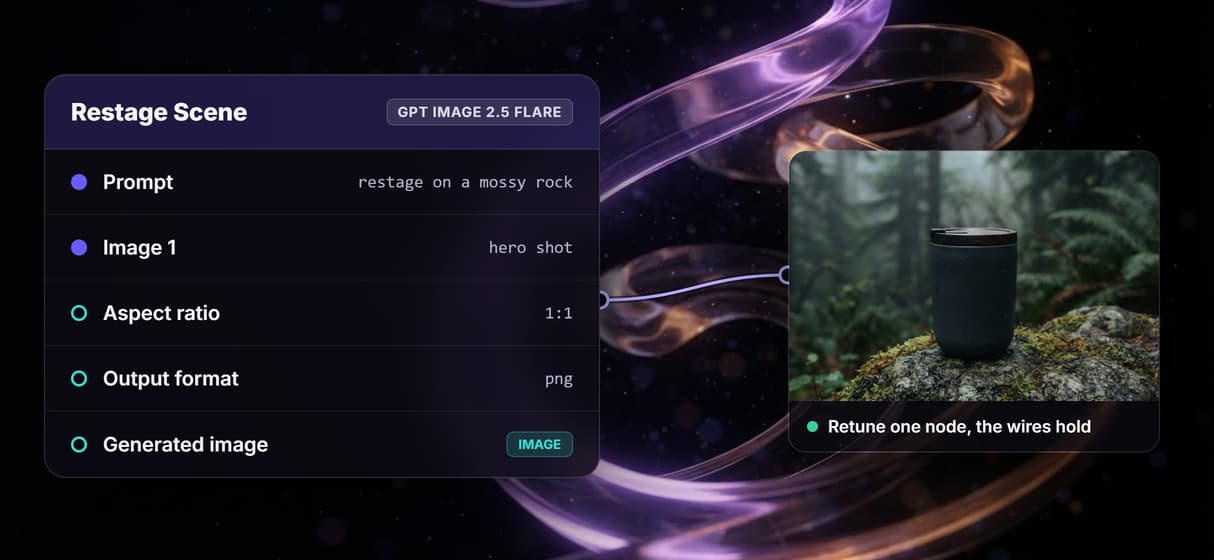
Reuse node groups
Build a processing chain once, then copy it into a new graph as a template. Share tested node setups so nobody rebuilds the same logic twice.
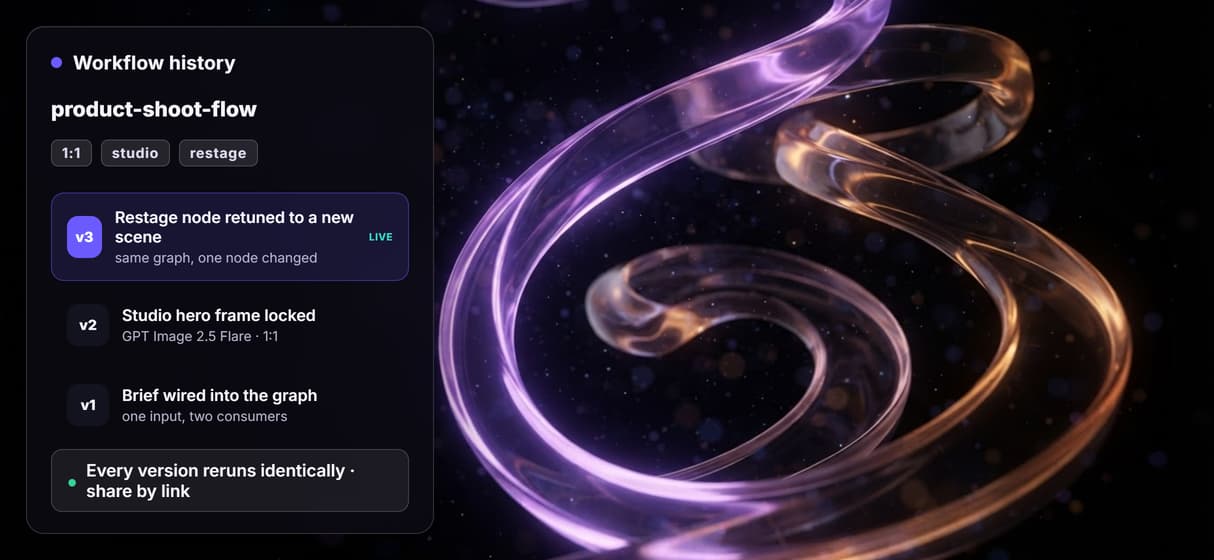
Chain model into model
Feed one node straight into the next so a text brief becomes a studio hero shot and then a restaged scene, wired end to end on one canvas. For stills, start from Wireflow's node-based AI image generator.
Build Any AI Workflow
AI Models Integrated
Full Commercial License
FAQs
It is a tool where you build an AI pipeline as a graph of connected nodes. Each node is a model or a step and wires carry data between them. You see the whole workflow structure on a canvas instead of reading code.
Discover related AI tools
- Weavy AI Alternative (Weavy.ai Is Now Figma Weave)
- Flora AI Alternative
- Freepik Spaces Alternative
- RoboNeo AI Alternative: 79 Models in Your Browser
- Sotatech AI Alternative
- Pletor AI Alternative: 79 Models, No Black Box
- Fuser Studio AI Alternative
- AI Creative Workflows
- No Code AI Canvas
- Reusable AI Templates
- AI Pipeline API
More From Wireflow
Written by
Andrew Adams · Co-Founder & Operations at Wireflow
Runs client operations and content strategy at Wireflow. Works directly with creative teams and agencies to build production AI workflows.
Wire your first graph on the canvas
Drag model nodes onto a hosted canvas, connect one output into the next input, and run the whole image pipeline in your browser. No code, no GPU, and every node shows its own preview.